# GPU Pods

## 💻 Managing Pods via Console

#### Pod Page Overview

By default, the system displays Pods with an **In Progress** status, which includes the following states:

* **Preparing**: Resources are being prepared
* **Initializing**: Resources are being allocated and the Pod is being deployed
* **Running**: The Pod is running
* **Stopping**: The Pod is being paused and resources are being reclaimed
* **Stopped**: The Pod has been paused
* **Terminating**: The Pod is being terminated and resources are being reclaimed
* **Terminated**: The Pod has been terminated
* **Failed**: The Pod failed to deploy. Common causes include:
  * **Insufficient system resources**
  * **Invalid image configuration**

<figure><img src="/files/m40kOOqBOgNOt8PCNLAD" alt=""><figcaption></figcaption></figure>

* There are buttons you can use at the bottom:

  * :link: `Connect` You can connect your machine to specific ports, such as 8888 for Jupyter Notebook. We currently support both **SSH** and **HTTP** ports.

  <figure><img src="/files/FiYh68dkP5eVGKzVI4a6" alt="" width="438"><figcaption></figcaption></figure>

  <figure><img src="/files/tyzidtTRU6Yj9MbgVf4Y" alt="" width="443"><figcaption></figcaption></figure>

  * :notepad\_spiral: `Log` You can check the container logs to view its current status and identify any errors or issues.

  <figure><img src="/files/5i2dHkQgjogaJwSt8TVs" alt="" width="563"><figcaption></figcaption></figure>

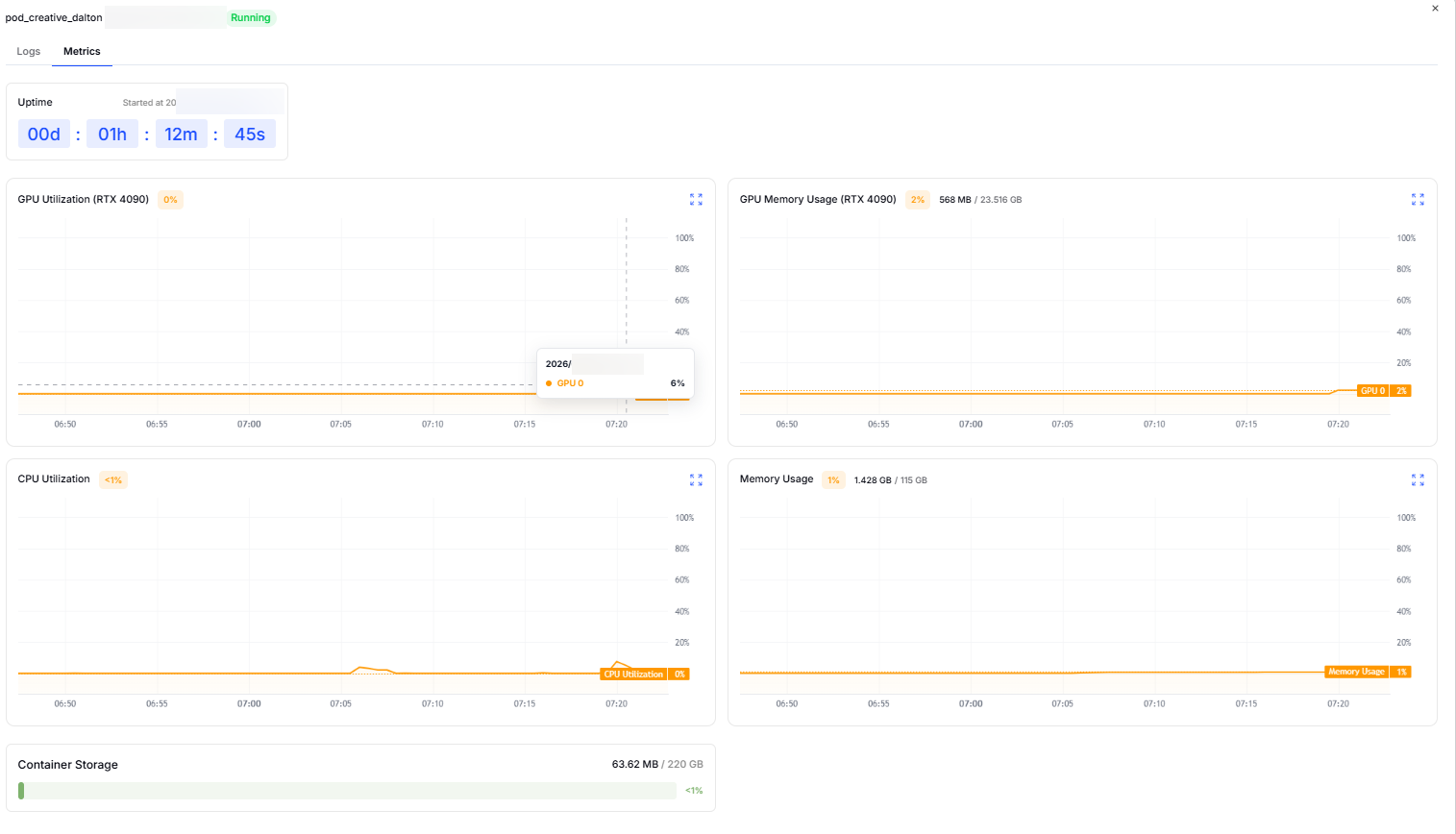
  * :chart\_with\_upwards\_trend:`Metrics` This provides real-time monitoring of GPU, CPU, memory, and storage usage to help you track system performance and resource utilization.

  <figure><img src="/files/PnfFbhAJIIRee7mBqXAI" alt=""><figcaption></figcaption></figure>
* Click the **History** tab to view Pods that have completed within the last 24 hours, which includes:
  * `Terminated` – The Pod has been deleted.
  * `Failed` – Deployment failed. Common causes:

    * Insufficient system resources
    * Invalid image configuration

    <figure><img src="/files/Uyf5KazYhzPTRCUzngmb" alt="" width="275"><figcaption></figcaption></figure>
* There is a search bar where you can use Pod name to find your Pod (fuzzy search supported). You can also use **Pod Status** or **GPU Type** to filter Pods.

## ⚙️ Deploying a Pod

#### Step-by-Step Guide

* **Navigate to:** `Compute → Pods`

<figure><img src="/files/qRLsdWnHNWD2mmmhnGfJ" alt=""><figcaption></figcaption></figure>

* **Click Deploy** (top right). You’ll enter the **GPU Selection** page.

<figure><img src="/files/uLIOdLdsDZsMV8ssOQwS" alt=""><figcaption></figcaption></figure>

* **Select GPU Type**

  * Choose a GPU model suitable for your workload.

  <figure><img src="/files/Xq0hvUTURTebMFE1Jd82" alt=""><figcaption></figcaption></figure>
* **Configure Pod**

  * Fill in required parameters (fields marked with **`*`** are mandatory).

  <figure><img src="/files/e6IvY3Klg3RLcPASd2zT" alt=""><figcaption></figcaption></figure>

**Image Requirements**

Click **Edit** next to image name to further configure your image. We provided a list of official images compiled by Yotta Labs. Also, we allow users to select custom images including both **Public Images** and **Private Images**.

Here are a few requirements if you want to build your custom image:

* Must be compiled for **x86** architecture
* Must be **Debian/Ubuntu**

5. **Deploy**\
   Click **Deploy** to complete the process.

<figure><img src="/files/jepE2TwDIe9gyMtgASsl" alt="" width="302"><figcaption></figcaption></figure>

## 💾 **System Volume**

The System Volume would automatically mount a list of system directories on the created Pod. This ensures that software, configurations, and data stored within these directories are persistent even if the Pod is edited or restarted.

#### **Supported Directories**

Read and write operations to the following directories will be persistent:

<table data-header-hidden data-full-width="false"><thead><tr><th width="169.5" align="center" valign="middle"></th><th align="center"></th></tr></thead><tbody><tr><td align="center" valign="middle"><strong>Directory</strong></td><td align="center"><strong>Brief Description</strong></td></tr><tr><td align="center" valign="middle"><code>/home</code></td><td align="center">User home directories; user-level configs and data.</td></tr><tr><td align="center" valign="middle"><code>/root</code></td><td align="center">Root user home directory; scripts and temp data.</td></tr><tr><td align="center" valign="middle"><code>/var</code></td><td align="center">Variable files (logs, caches, runtime data).</td></tr><tr><td align="center" valign="middle"><code>/run</code></td><td align="center">Runtime status files (PIDs, sockets).</td></tr><tr><td align="center" valign="middle"><code>/etc</code></td><td align="center">System and service configuration files.</td></tr><tr><td align="center" valign="middle"><code>/usr</code></td><td align="center">System-level apps, libraries, and runtime components.</td></tr></tbody></table>

#### **Size Requirements**

To ensure that the Pod can launch and run smoothly, we recommend using the following rule to decide the size of your system volume:

> The size of the system volume needs to ≥ Image Size × 3

**Example:**

* **Image:** PyTorch base image (10 GiB)
* **Recommended System Volume Size:** At least 30 GiB

{% hint style="info" %}
The "**For Development**" button is automatically turned on when you are creating a pod.

You can find it and change the settings beside the pod name bar.

System volume is set to 100GB by default.
{% endhint %}

#### **Recommended Use Cases:**

* **Preserving Environments:** Retaining toolchains or dependencies (e.g., pip packages) after a Pod rebuild.
* **Persisting Configurations:** Saving changes made in `/etc`.
* **Retaining Logs:** Keeping logs in `/var` for a specific period.

<figure><img src="/files/Kbhnk3vtlAzjkgQUnO2s" alt=""><figcaption></figcaption></figure>

## 🔌 Connecting to Your Pod

Once the Pod is launched:

* Click the **Connect** button on the Pod card to view exposed services.
* Availability depends on the **port configuration** defined at deployment.
* When the container port is **Ready**, the status will update automatically.

<figure><img src="/files/tyzidtTRU6Yj9MbgVf4Y" alt="" width="443"><figcaption></figcaption></figure>

## 📜 Viewing Logs

* Click **Logs** on the Pod card to view both:
  * **System Logs** (platform-level)
  * **Container Logs** (application-level)

This helps with debugging deployment or runtime issues.

<figure><img src="/files/90sPyLKoP4LPVUfEaJI1" alt="" width="563"><figcaption></figcaption></figure>

## 🧊 Pausing or Terminating Pods

#### 🔸 Pause

If you only need to suspend temporarily:

* Click **Pause** on the Pod card.
* Only **Volume** storage will continue to incur charges.
* You can **Run** to restart anytime.
* Pods can be **edited** while paused.

#### 🔸 Terminate

If you want to remove the Pod completely:

* Click the **“...”** on the Pod card → choose **Terminate**.
* The Pod will be **permanently deleted** and **no longer billed**.
* Terminated Pods **cannot be edited or restarted**.

## ✏️ Editing a Pod

1. Go to **Compute → Pods** and locate the Pod.
2. Click **Pause** and wait until the Pod enters **Stopped** state.
3. Click **“...” → Edit**, modify configurations, and save.
4. Click **Run** to restart the Pod with the new settings.

## 📈 Pod Status Reference

| Status          | Description                                                |
| --------------- | ---------------------------------------------------------- |
| **Initialize**  | Resource allocation in progress; Pod deploying             |
| **Running**     | Pod is running                                             |
| **Stopping**    | Pausing in progress; resources reclaiming                  |
| **Stopped**     | Pod is paused                                              |
| **Terminating** | Termination in progress; resources reclaiming              |
| **Terminated**  | Pod fully terminated                                       |
| **Failed**      | Deployment failed (insufficient resources / invalid image) |

## 💰 Pricing & Billing

#### Formula

```
Hourly Pod cost = (GPU unit price per hour × number of GPUs) +
                  (Container Storage unit price per GB per hour × GB exceeding the free quota)
```

**Charges:**

* Your balance will be deducted once a Pod starts running.
* Once your balance drops to near $0, all running Pods will be terminated.
* If you no longer need a running Pod, you can Pause or Terminate it.

***

## 🧩 Managing Pods via OpenAPI

You can also manage Pods programmatically via Yotta Labs’ **OpenAPI**.

#### API Reference

* [📘 API & SDK Documentation](https://docs.yottalabs.ai/api-and-sdk/api-guides)

> **Tip:**\
> Always review the API documentation before calling endpoints to avoid common request errors (invalid parameters, insufficient balance, etc.).

## 🧱 Example Use Cases

* **Automated Pod Deployment** via Python SDK
* **Monitoring Pod Logs** using API polling
* **Scaling Workloads** across multiple GPU types
* **Integrating with CI/CD** to trigger training jobs automatically

***

## 🪄 Best Practices

* Use **Pause** instead of **Terminate** for short-term downtime.
* Monitor balance regularly to prevent auto-termination.
* Always verify image compatibility (x86 / Ubuntu-based).
* For debugging, prefer checking container logs first.

***

## 🧩 Related Docs

* [Pod API Reference](https://docs.yottalabs.ai/api-and-sdk/api-guides)
* [Billing](https://docs.yottalabs.ai/products/billing)


---

# Agent Instructions: Querying This Documentation

If you need additional information that is not directly available in this page, you can query the documentation dynamically by asking a question.

Perform an HTTP GET request on the current page URL with the `ask` query parameter:

```
GET https://docs.yottalabs.ai/products/gpu-pods.md?ask=<question>
```

The question should be specific, self-contained, and written in natural language.
The response will contain a direct answer to the question and relevant excerpts and sources from the documentation.

Use this mechanism when the answer is not explicitly present in the current page, you need clarification or additional context, or you want to retrieve related documentation sections.
