> For the complete documentation index, see [llms.txt](https://docs.yottalabs.ai/llms.txt). Markdown versions of documentation pages are available by appending `.md` to page URLs; this page is available as [Markdown](https://docs.yottalabs.ai/tutorials/image-and-video-generation/video-generation-with-comfyui.md).
# Video Generation with ComfyUI
## Introduction
In this guide, you will gain hands-on experience generating an **AI video** inspired by the **Stranger Things** universe. We’ll guide you step-by-step through the process of creating a video using a single image of **Max** and transforming it into a dynamic video sequence. Let’s get started!
***
### Step 1: **Platform Access and GPU Instance Creation**
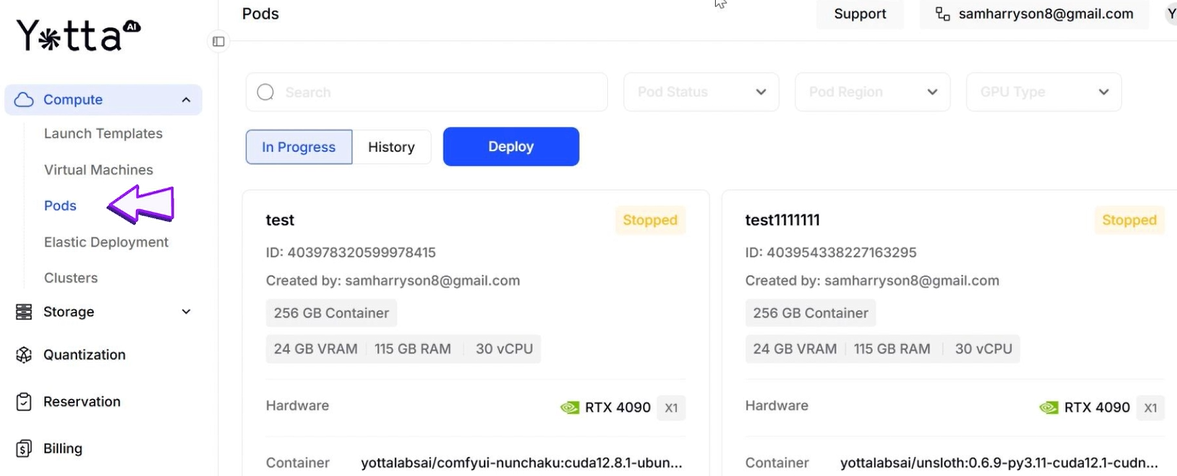
1. **Navigate to Pods**:
* On the left sidebar, you’ll find various options. For this task, click on **Pods**. A **Pod** is essentially a container for your AI task where GPUs are rented for processing.
2. **Create a New Pod**:
* Click on **Deploy** to create a new Pod for your task.
* In the list of available GPUs, select your favourite GPU.
* Enter a **project name**.
3. **Choose Template**:
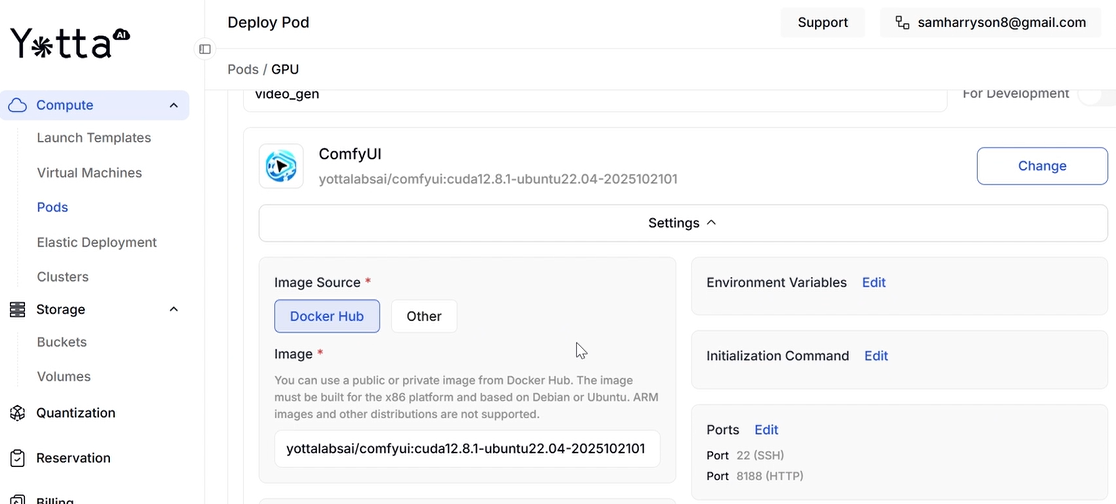
* From the list of available templates, select **Comfy UI**. This template is pre-configured with the necessary software for video generation, making the setup process easier.
4. **Set Up Storage**:
* In this step, you will define the storage options for your project:
* **Image Source**: Select where your input image will come from (local upload or cloud storage).
* **Container Storage**: Temporary space for storing intermediate files during the task.
* **Persistent Storage**: Long-term storage for final video files, checkpoints, and data that should persist even after the container stops.
5. **Deploy and Wait**:
* Click **Deploy**, and wait for the Pod’s status to change to **Running**. This typically takes 30-90 seconds, depending on the GPU and image size.
* Once the status changes to **Running**, you’re ready to proceed to the next step.
***
### Step 2: **Navigating to Comfy UI**
1. **Launch Comfy UI**:
* Once your Pod is ready, click on **Launch Comfy UI**. This will take you to the **Comfy UI** visual interface, where the AI video generation process happens.
2. **Select Model for Video Generation**:
* In the Comfy UI interface, you’ll see several mainstream models. Since we want to generate a video from a single image, choose the **ByteDance Image-to-Video model**. This model is specifically designed for creating dynamic videos from still images, like the one you’ll be using for **Max**.
***
### Step 3: **Setting Up the Workflow in Comfy UI**
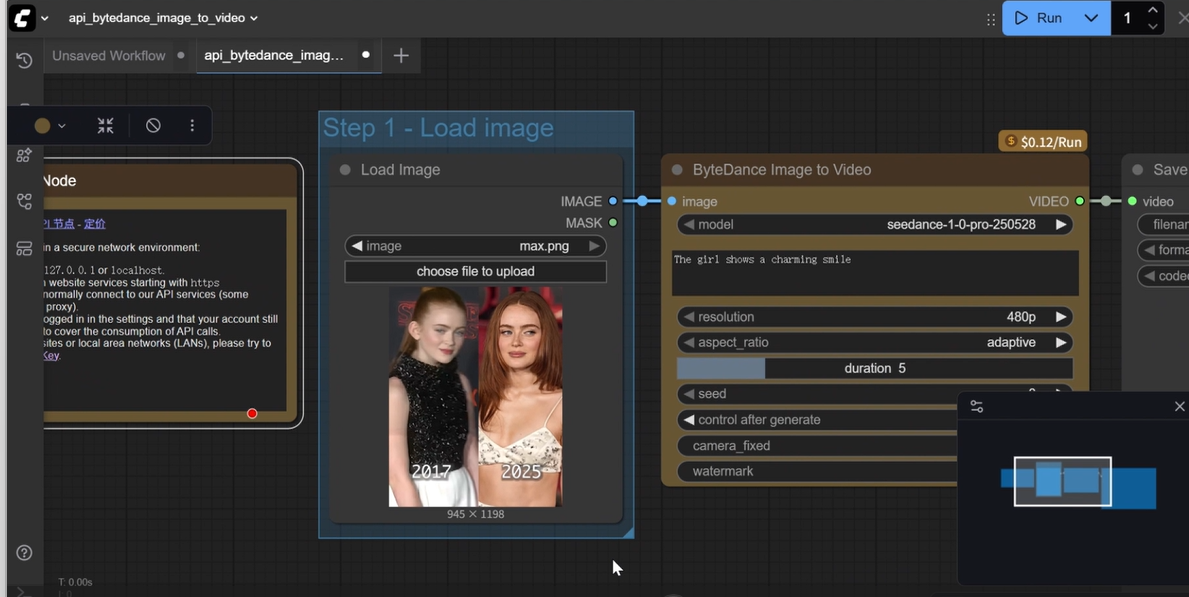
The workflow interface in Comfy UI is based on a node system, where each block represents a step in the video generation pipeline.
1. **Load Image**:
* The **Load Image** node allows you to upload your input image. This image will be the starting point for the video generation process.
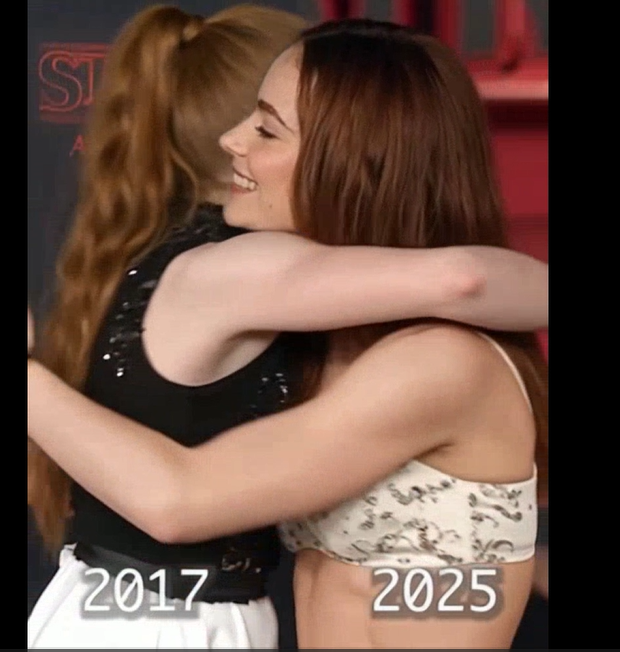
* **Upload** the image of **2017 Max vs. 2025 Max**.
2. **Image to Video**:
* This is the core node of the workflow. It takes the input image and creates the video by adding motion and visual effects.
* **Model Select**: Choose the **ByteDance model** for video generation.
* **Prompt Box**: Describe the video and how the subject should look or move (e.g., **“Max Mayfield from Stranger Things, looking determined, subtle smile, wind blowing her hair, cinematic lighting, 8K ultra-detailed”**).
* **Resolution**: Set the resolution of the video. For this example, set it to **1024×576** (16:9 aspect ratio) to match most video platforms.
* **Aspect Ratio**: This will be automatically set to match the input image’s aspect ratio to avoid any distortion.
* **Duration**: Set the duration of the video. For this task, set it to **2 seconds** (with a frame rate of 16 fps, resulting in 32 frames).
* **Seed**: Set a seed value to control the randomness of the output. For reproducible results, use a fixed number (e.g., **12345**).
* **Control after Generate**: Enable this option if you want the seed to change automatically after each run, providing more variability.
* **Camera Fixed**: Decide whether the camera should stay still or allow slight movement (e.g., panning, zooming). For this task, you might want to keep the camera **fixed**.
* **Watermark**: Decide if you want a watermark in your video. For non-commercial use, it’s fine to leave it enabled. If you need it removed, you can request it from the platform’s settings.
***
### Step 4: **Generate the Video**
1. **Run the Generation**:
* Once you’ve configured the prompt and all settings, click **Run**.
* The system will process the image and generate the video based on your input. Wait for the progress bar in the top right corner to turn **green**, which indicates the process is complete.
1. **Download the Video**:
* Once the video is generated, it will automatically be saved in **Persistent Storage** under the `/output` directory.
---
# Agent Instructions
This documentation is published with GitBook. GitBook is the documentation platform designed so that both humans and AI agents can read, navigate, and reason over technical content effectively. Learn more at gitbook.com.
## Querying This Documentation
If you need additional information that is not directly available in this page, you can query the documentation by asking a question.
Perform an HTTP GET request on the following URL with the `ask` and `goal` query parameters:
```
GET https://docs.yottalabs.ai/tutorials/image-and-video-generation/video-generation-with-comfyui.md?ask=&goal=
```
`ask` is the immediate question: it should be specific, self-contained, and written in natural language.
`goal` is what the user is ultimately trying to achieve, the reason they need the answer. Sharing it helps GitBook give you a better, more relevant answer. A goal is most helpful when it describes the outcome the user wants rather than restating the question. For example, with `ask=how do I create an API token`, a goal like `automate deployments from our CI pipeline` lets GitBook tailor the answer to that use case.
The response will contain a direct answer to the question and relevant excerpts and sources from the documentation.
Use this mechanism when the answer is not explicitly present in the current page, you need clarification or additional context, or you want to retrieve related documentation sections.